Devices, servers, and interfaces
A device is anything with a network presence: a router, a switch, a NAS, a phone, a printer, a virtual machine. A device has a name, a type, optional hostname and platform details, and one or more interfaces.
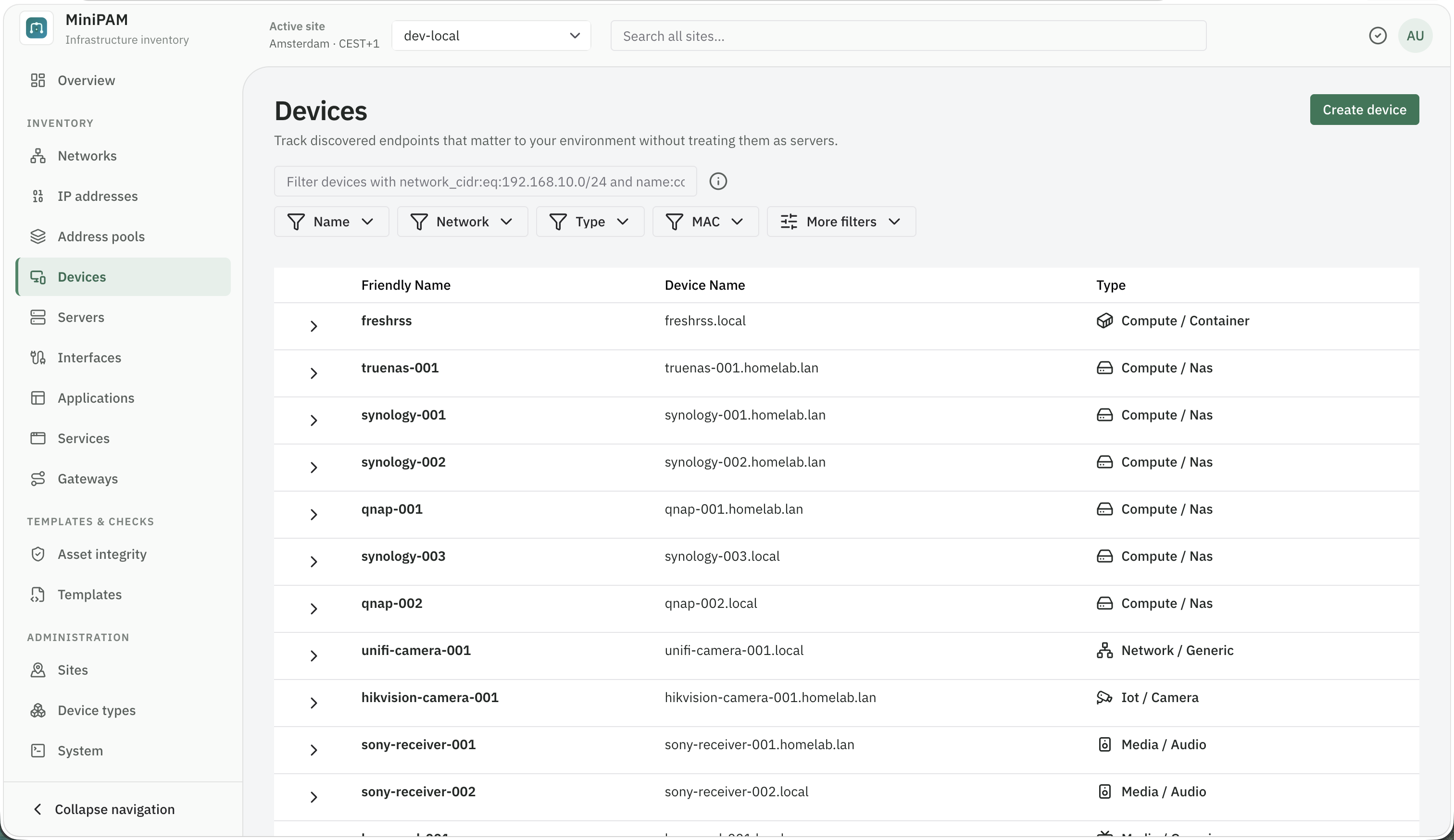
Devices and servers are one inventory
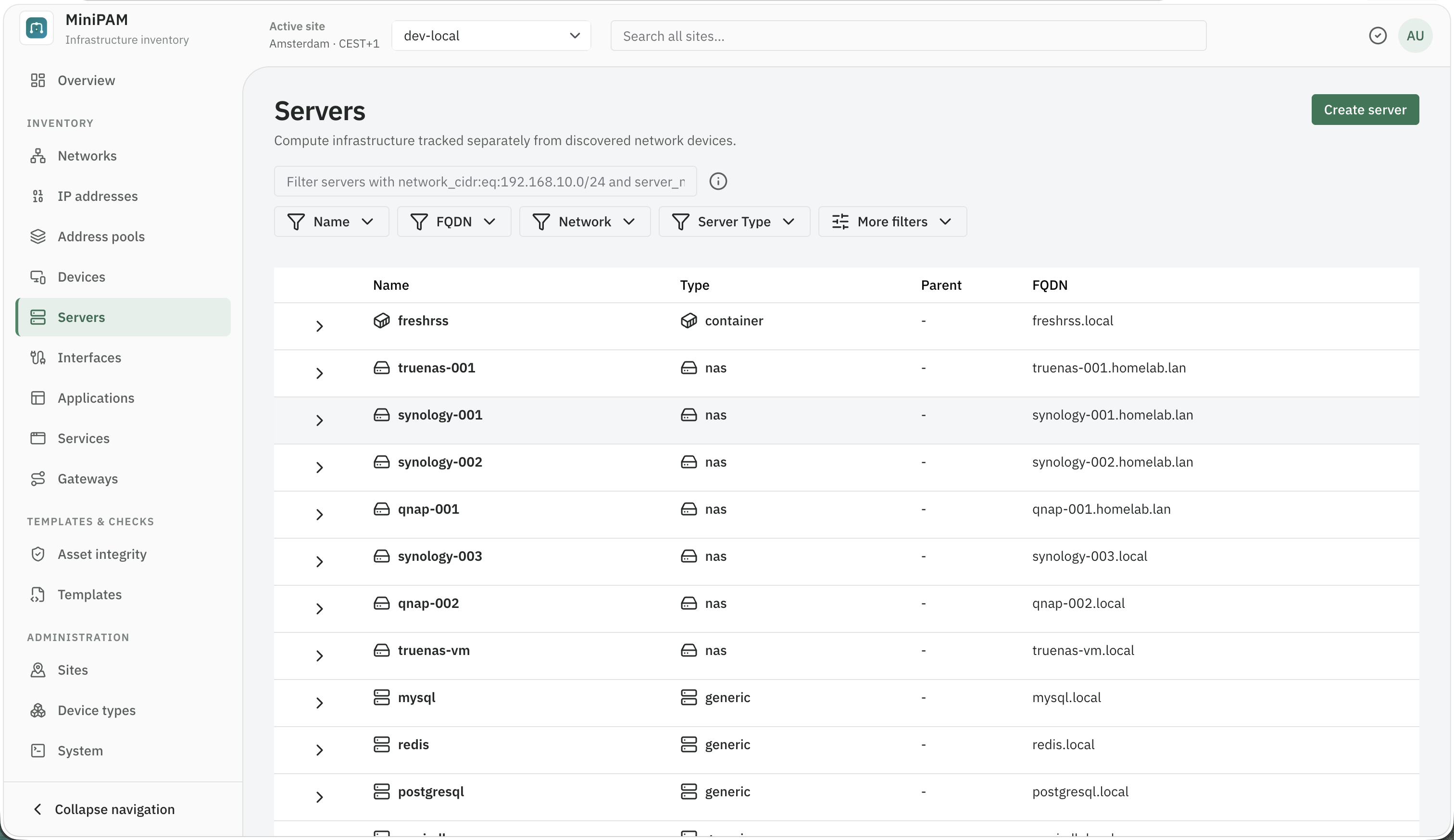
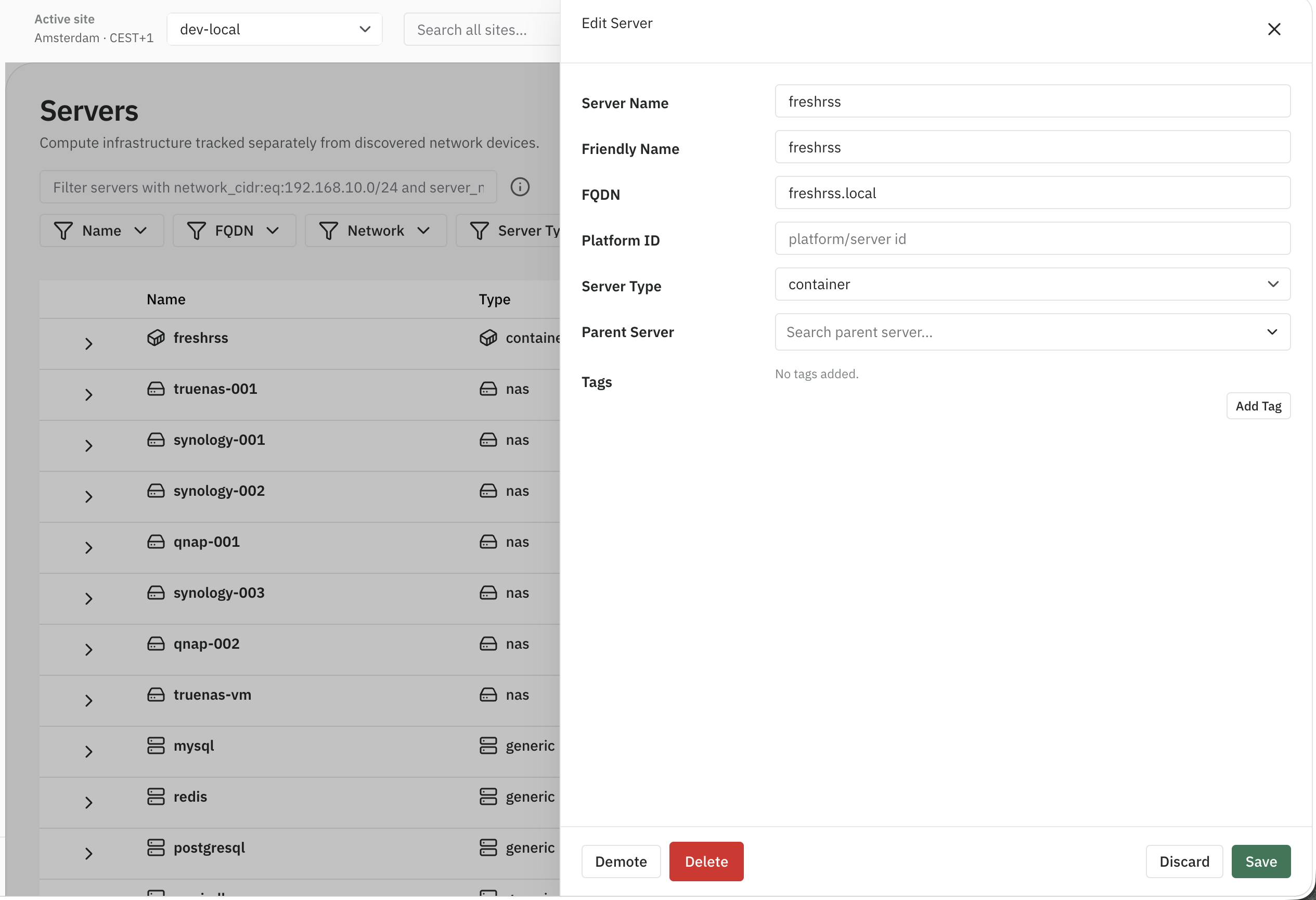
Inventory → Servers shows the devices whose type is compute: hypervisors, physical servers, and virtual machines. Inventory → Devices shows the rest. They are two views of the same records, so add each machine once. Changing a device's type moves it between the two lists.
Servers can have a parent. Put a virtual machine or container under the hypervisor that runs it, and the Servers page shows them as a tree.
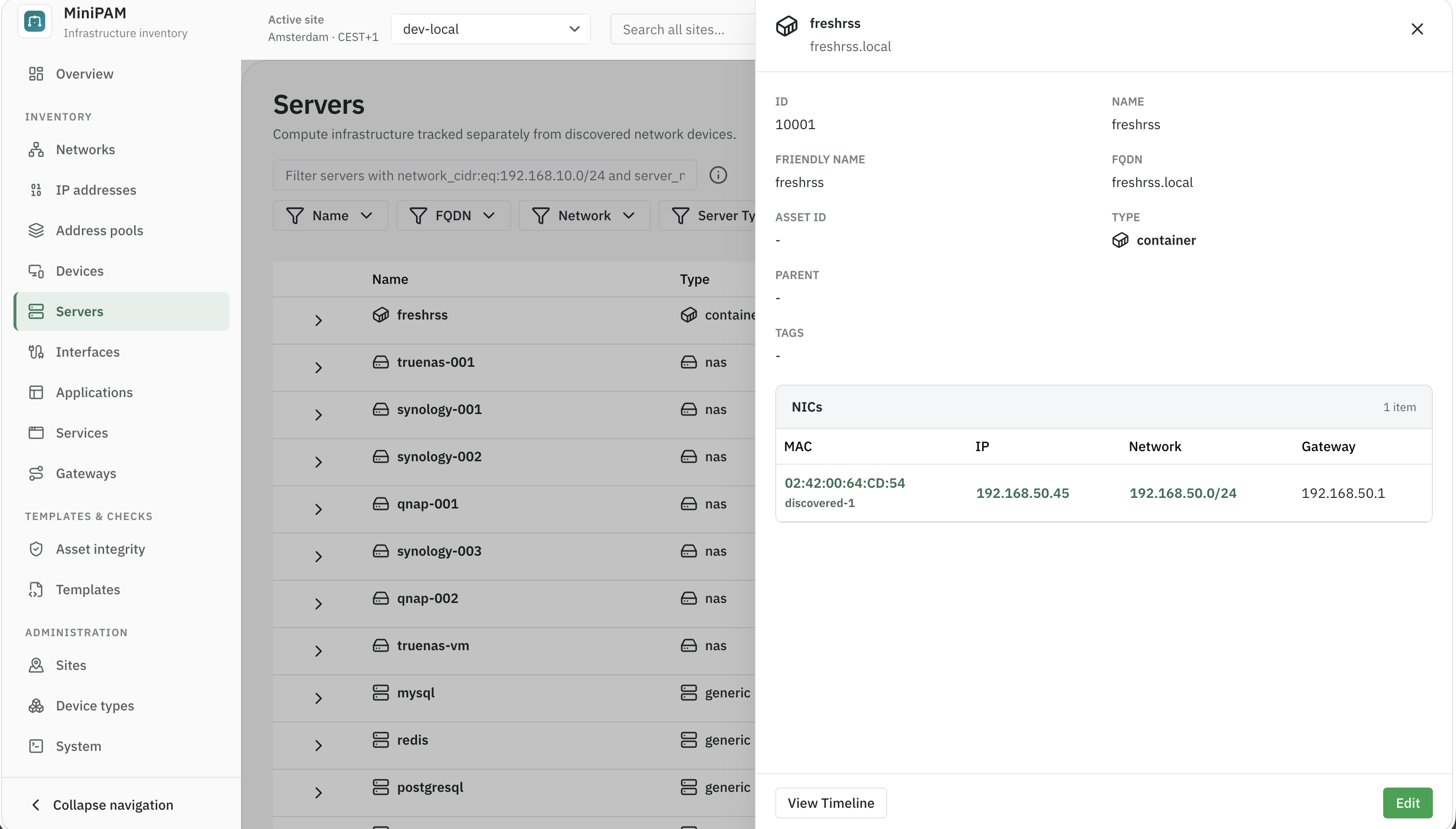
Interfaces own addresses
An interface is a network port on a device, identified by its name and MAC address. MiniPAM looks up the MAC vendor for you.
Assign IP addresses to interfaces, not directly to devices. That way an address knows which MAC it belongs to, and when a device gets a second network card, nothing needs remodelling. Interfaces can also nest, for example a VLAN interface under a physical port.
Assign an IP address to an interface
You link an address to an interface from the address's side:
- Open Inventory → IP addresses and choose Create IP address. For an address that already exists, open it and choose Edit.
- Pick the Network, enter the IP Address, set Type to
interface, and choose a Status. - Under Linked Entities, choose Add Link. Set Entity Type to Server or Device, type part of its name under Search, and pick it under Matching Entity.
- Pick the interface under Server NIC or Device MAC, then choose Add Link.
- Choose Create (or Save when editing).
You can also start from the interface: under Inventory → Interfaces, create or edit the interface, expand IP Attachment, and under After save choose Attach an existing IP address or Create a new IP address and attach it.
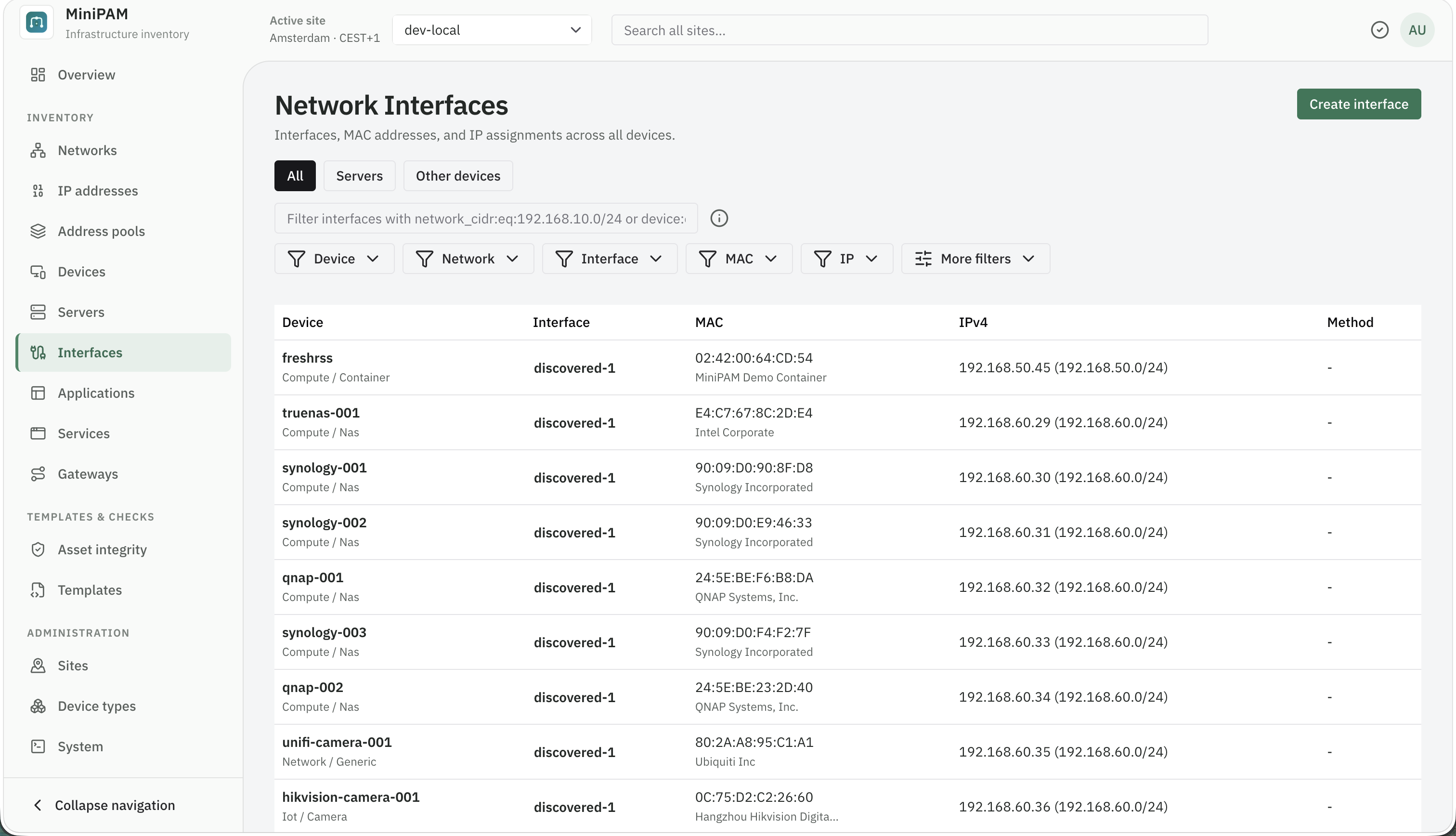
Inventory → Interfaces lists every interface across all devices, which is handy for finding a MAC address.
Device types
Every device has a type, such as router, switch, NAS, printer, or virtual machine. Types give each device an icon and decide whether it appears under Servers. The catalog is under Administration → Device types.
Edit and retire
Edit a device from its row or detail view. When equipment is replaced or removed, delete it or retire its addresses, so the address view does not show stale owners.
Each device also has a timeline of what discovery observed about it, if you use an agent.