Users, roles, and API keys
MiniPAM has its own local users. Each user has one role, and can own API keys for scripts and other systems.
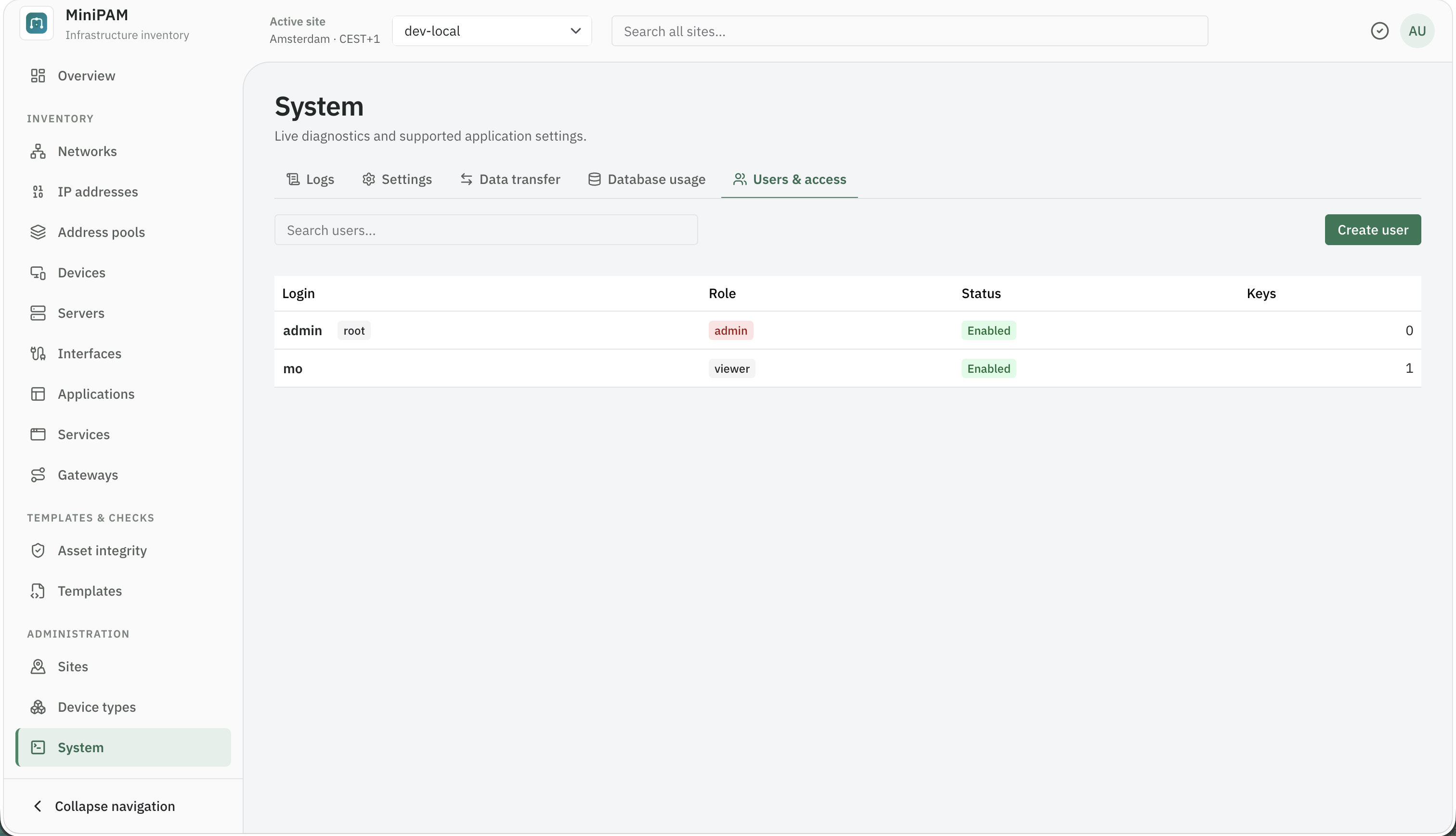
Admins manage users under Administration → System → Users & access.
Roles
Each role includes everything the role before it can do.
- Viewer: See everything: inventory, discovery, jobs, templates, checks, and results. Download published outputs.
- Editor: Create, change, and delete inventory. Run agent jobs. Apply or dismiss discovery suggestions. Write, run, and publish templates and checks. Run a schedule now.
- Admin: Manage sites, agents, and schedules. Change discovery rules and scan policy. Delete device types and jobs. Everything under System: users, API keys, logs, settings, data transfer, and database usage.
Give people the lowest role that lets them do their work. A system that only downloads a generated file needs a viewer.
Add a user
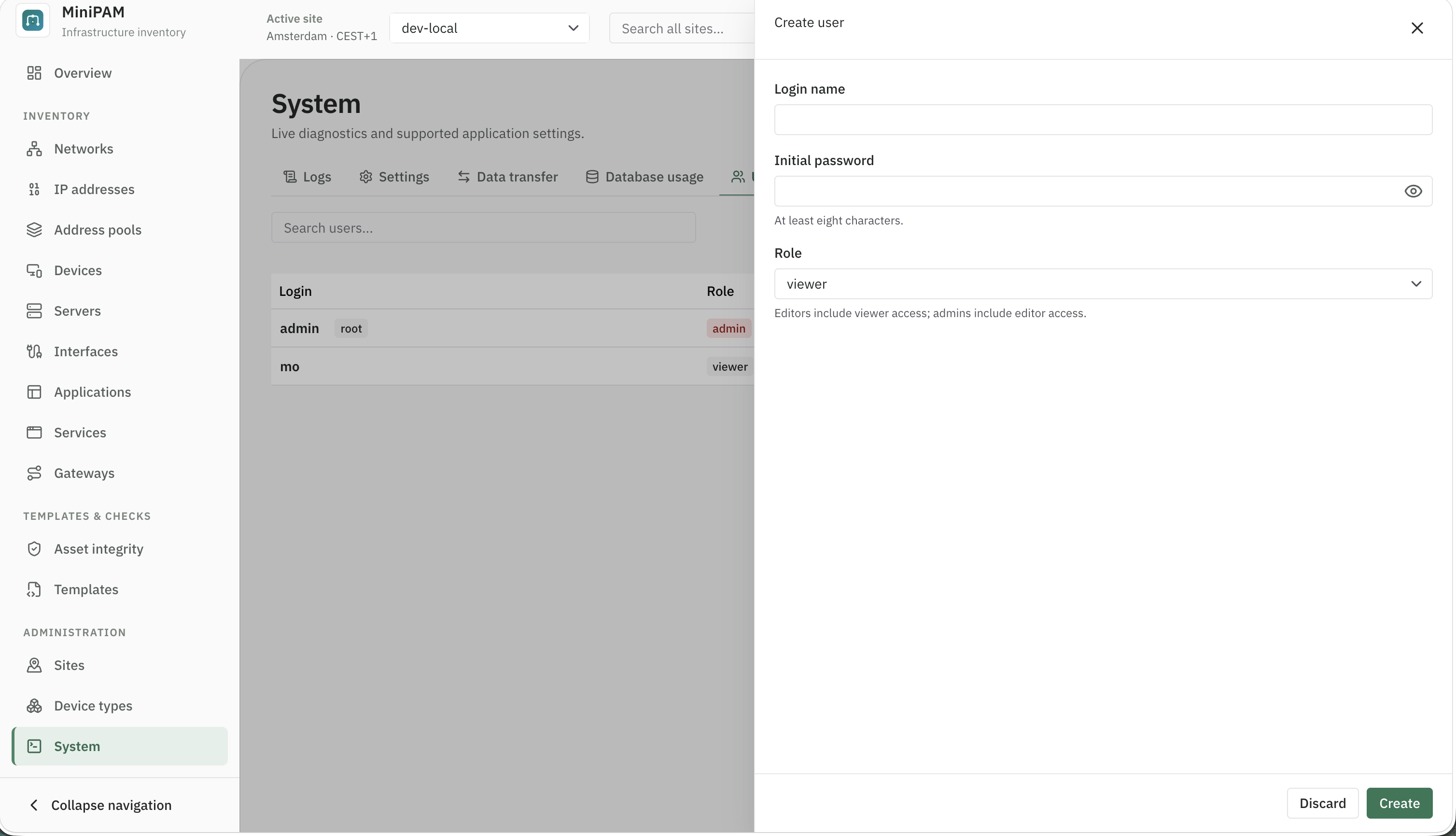
Choose Create user and enter a Login name, an Initial password of at least eight characters, and a Role. From the user's row you can change the role, disable the account, reset the password, or delete the user.
You cannot disable or demote yourself, or the root admin: the first admin, created when you set up MiniPAM.
API keys
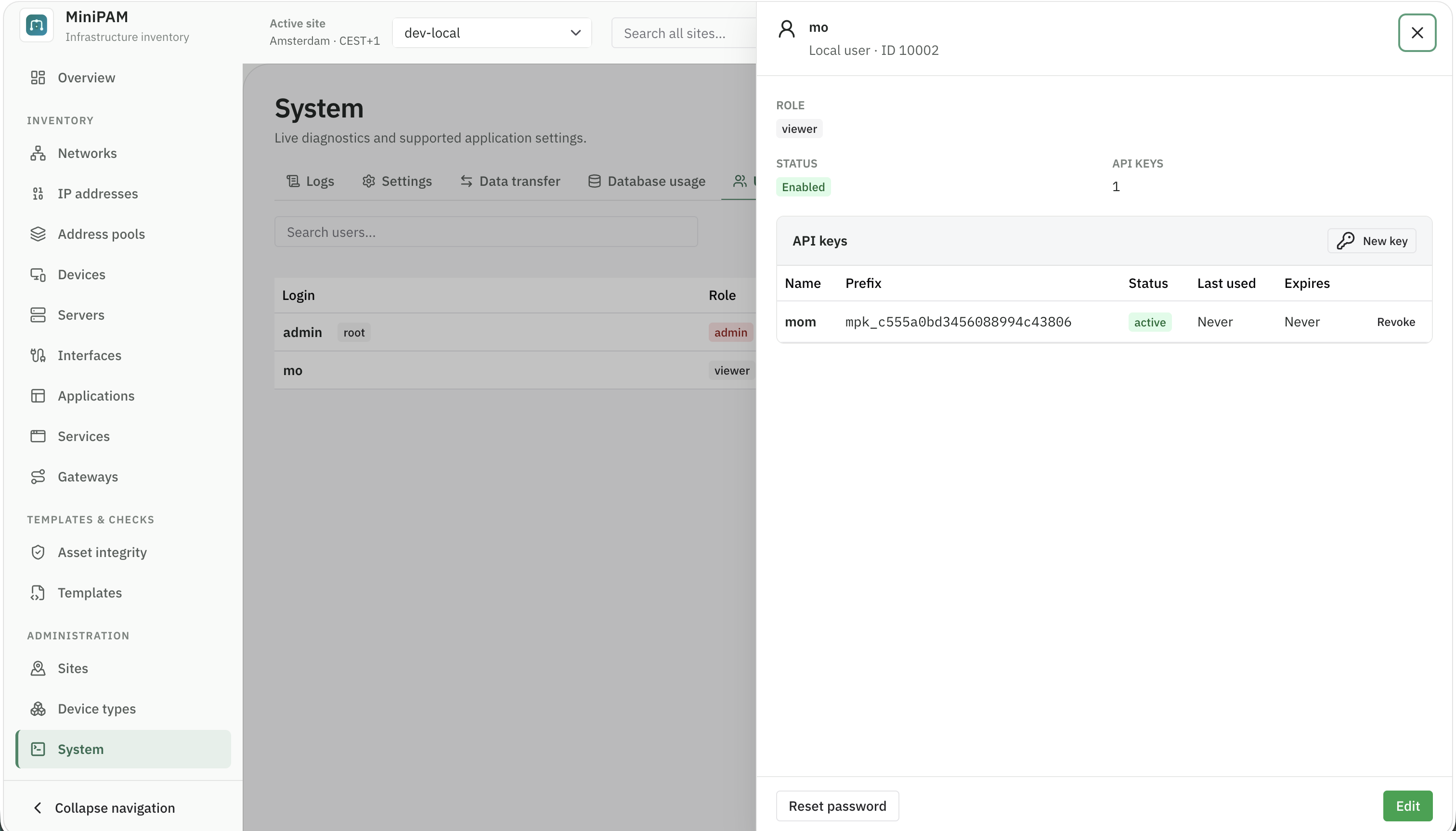
An API key lets a script act as a user, with that user's role. Keys stop working when their user is disabled.
- Open the user's API keys.
- Give the key a Name that says what uses it, such as
Home Assistant automation. - Optionally set Expires at. Leave it blank for a key that does not expire.
- Copy the key. It is shown only once.
Send it in the X-Minipam-Api-Key header:
curl -H "X-Minipam-Api-Key: $MINIPAM_API_KEY" https://minipam.example.com/v1/api/networks/
The list shows each key's prefix and when it was last used, so you can find and Revoke a key you no longer need. Create one key per system, so revoking one does not break the others.
Reset the admin password
If you are locked out, reset the root admin's password from the server. Replace <your-admin-login> with the
root admin's current login name:
cd app-server
../.venv/bin/python cli.py auth set-root --loginname <your-admin-login> --config config.local.yml
With Docker:
docker exec -it minipam python cli.py auth set-root --loginname <your-admin-login>
This signs the root admin out everywhere. Use the same login name as before, or the command renames the root admin; see From the command line.
Sessions
Browser sign-ins last 24 hours by default and renew while you use MiniPAM. Change this with session-duration
and session-renewal-interval in the server configuration.