Review discovered devices
Discovery never changes your inventory on its own. An agent collects observations; MiniPAM turns them into suggestions; you decide what to apply. The only exception is a small class of safe updates described in What applies automatically.
You need the Discovery workspace feature and a connected agent. Running jobs and applying suggestions need the editor role; review rules and the scheduling policy need the admin role.
1. Scan a network
Open Discovery → Jobs, choose Agent jobs, pick the agent, and choose Run Agent Job. The Run discovery button on the Overview opens the same form. Choose the Input Type:
netscan.request(netscan) finds hosts on a network the agent is directly attached to (ARP). Start here.netscan.enrichment.request(nmap enrichment) looks at specific hosts in more detail: open ports, services, products, and certificates.
Keep the first scan small: one local subnet. To scan regularly, open Jobs → Schedules, choose Network scan settings, and turn on periodic network scans, or tick Enable automatic periodic netscan on the agent. See Jobs and schedules.
2. Review the queue
Open Discovery → Review queue. Suggestions are grouped by discovered device, so you review one machine at a time rather than a hundred loose fields.
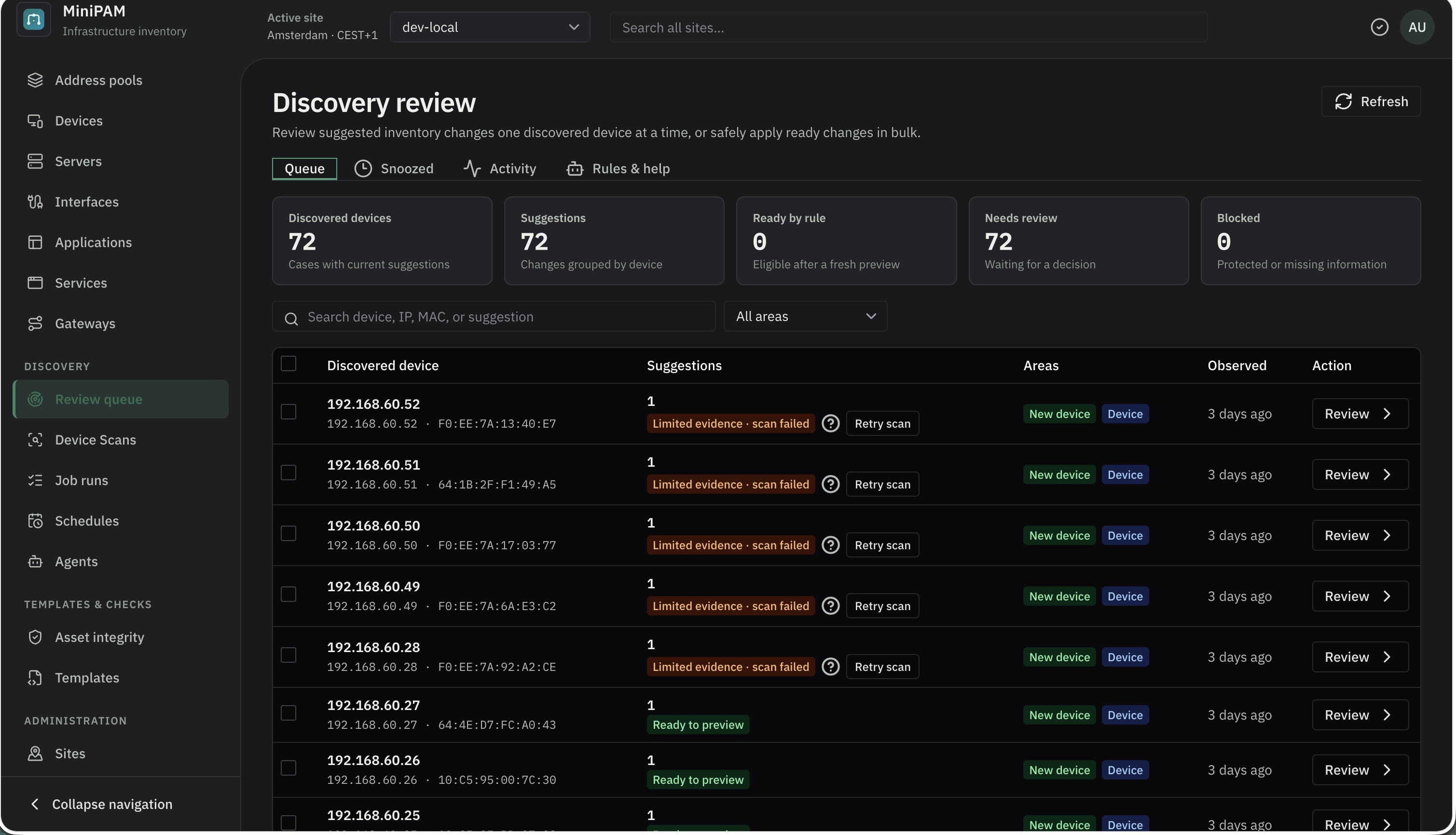
The tiles at the top count discovered devices, suggestions, what is ready to apply by rule, what needs your review, and what is blocked. Filter by area (Devices, Applications, Tags), by New devices, or search by device, IP, MAC, or suggestion.
Open a device to see each proposed change next to the evidence behind it. Prefer strong evidence: a stable MAC address or a directly observed FQDN beats a guess from a hostname pattern. Then choose:
- Apply this suggestion: Apply the proposed changes. You see the exact creates, updates, and links first.
- Preview manual changes: Adjust fields yourself, preview, then apply.
- Dismiss: Reject this suggestion, with a reason.
- Ignore exact change: Never suggest this exact change again, with a reason.
- Leave for later · 7 days: Snooze the device for 7 days. It moves to Snoozed.
- Scan now / Retry scan: Collect fresh evidence before deciding.
To work through many devices, select rows and use Defer (until tomorrow, 7 days, or 30 days), or Review changes to preview and apply a batch.
Applied changes are ordinary inventory edits. The review queue's Activity view lists them, and Undo change reverses one after showing you what the undo will do.
Do not bulk-apply because the queue is long. Filter to new devices or one area, apply the clear cases, and retry scans for devices with little evidence.
3. Keep devices up to date
Discovery → Device Scans is the introspection page: it scans known devices in more detail to refresh their evidence. It lists every device MiniPAM knows about and when its evidence was last refreshed: New, Due, Running, Waiting, Failed, or Current.
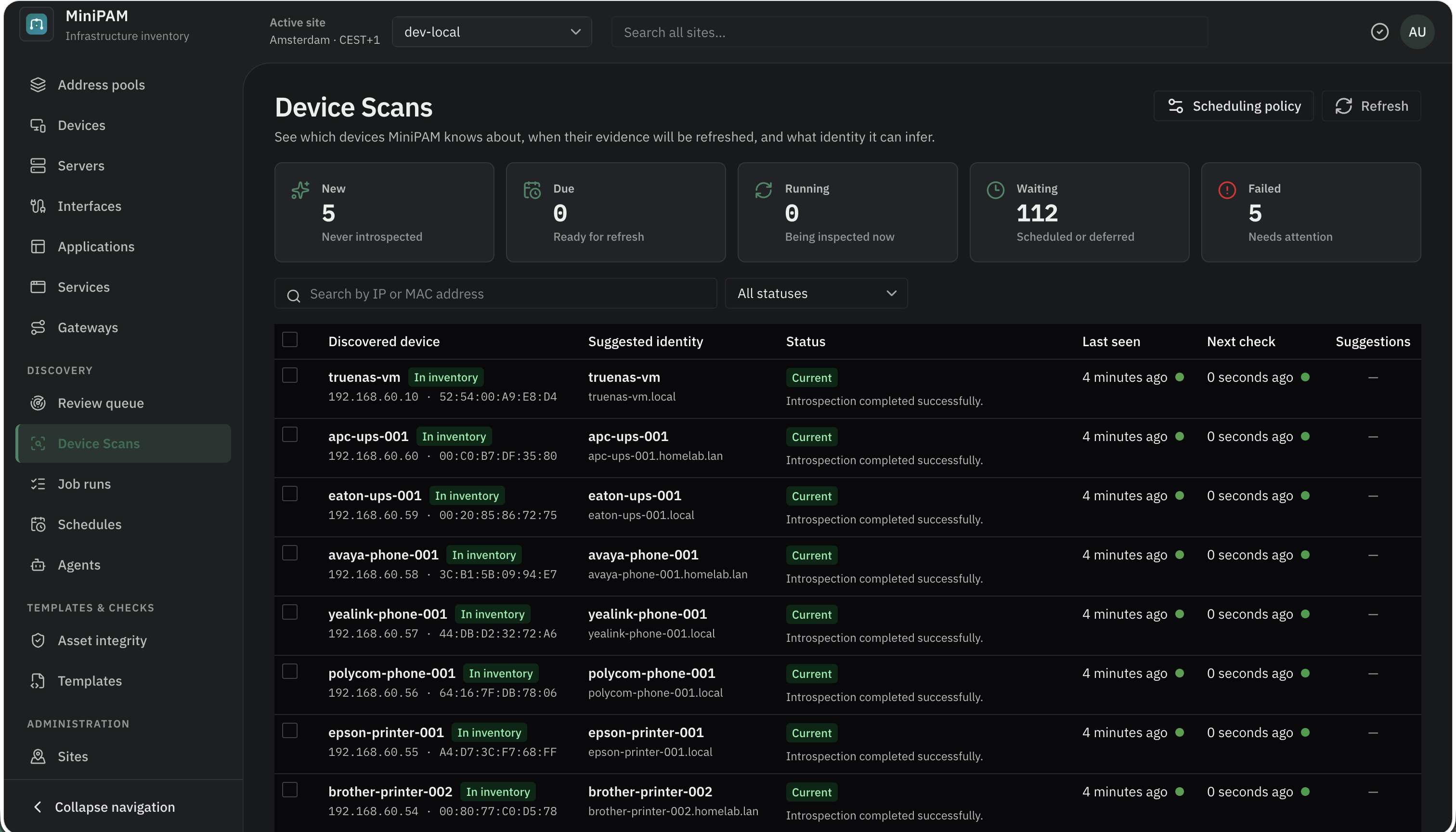
Select devices and choose Preview device introspection to scan them in more detail. Pick an Inspection depth:
- Quick: basic identity and reachability checks. Lowest network use.
- Standard: balanced device and service inspection.
- Deep: broader privileged checks such as OS detection. Highest network use. Admins only, and the agent
must have
allow-privileged-detailturned on.
Admins can turn on automatic introspection under Scheduling policy: how long to wait before the first scan, how often to refresh, and how many scans may run at once per agent and overall.
What applies automatically
New records and removals always wait for review. Only an update to a value MiniPAM already manages may apply on its own, and only with strong evidence. Admins can adjust this under Review queue → Rules & help, and preview a rule against queued suggestions before saving. See What applies automatically.